

The "Blocked by robots.txt" report in Google Search Console is not a bug report. It is Google telling you that it did exactly what your site asked it to do, and checking whether you meant it.
Sometimes you did. Admin paths, checkout flows, and internal search results belong in that report. Sometimes you did not, and a page you spent a week writing has been sitting behind a rule that nobody noticed. The difficulty is that robots.txt precedence is not intuitive, so the line responsible is often not the line you would guess.
noindex instead.What "Blocked by robots.txt" actually means
Google discovered the URL, usually from a link or your sitemap, then read your robots.txt before fetching it and found a rule saying not to. So it did not crawl the page, and because it never read the content, it did not index it.
Two things follow from this that catch people out.
First, the URL is known to Google even though the content is not. Discovery and crawling are separate steps, and robots.txt only prevents the second.
Second, Google cannot see anything on the page, including instructions you put there. A noindex tag on a blocked page is invisible, which is why blocking is the wrong tool for removal.
Two reports that sound the same and are not
Search Console produces two similar statuses, and confusing them leads to the wrong fix.
| Blocked by robots.txt | Indexed, though blocked by robots.txt | |
|---|---|---|
| Crawled? | No | No |
| Indexed? | No | Yes |
| What happened | Blocked, so excluded | Blocked, but links to it were strong enough to list it anyway |
| Usual severity | A problem only if the page should rank | Almost always worth acting on |
The second status is the strange one, and it exists because a search engine can list a URL it has never read. It knows the address from links pointing at it, so it shows the URL with a poor title and no description.
This is the outcome people accidentally create when they block a page to hide it. The block prevents Google reading the noindex that would have removed it, so the page stays listed in its worst possible form. If you see this status on a page you were trying to hide, the block is the cause, not the cure.
Find the affected URLs
In Search Console, open Indexing → Pages and look under "Why pages aren't indexed" for either status. Click through to the URL list and export it.
Read the list before changing anything. The pattern usually tells you the cause immediately:
- Everything under one directory points at a single directory rule.
- Only URLs with query strings points at a pattern rule such as
Disallow: /*?. - The entire site points at a
Disallow: /left over from a staging environment, which is the expensive version of this problem. - A scattered handful usually means a named user-agent group is overriding your wildcard rules.
For a single URL, the URL Inspection tool confirms the status and shows which robots.txt file Google used.
Find the rule responsible
This is the step people skip, and it is the one that saves the time. Editing robots.txt by eye works until a named group or a pattern is involved, and then it quietly does not.
Google removed the robots.txt Tester from Search Console, so the obvious place to test a URL is gone. Search Console still shows the robots.txt files it fetched, under Settings → robots.txt, which is useful for confirming what Google actually read, but it will not test a path for you.
Test the URL against your live file for Googlebot. The free ToolTrace robots.txt Tester returns the verdict with the directive and line number that produced it, so you know precisely which line to edit rather than guessing.
Three rules explain nearly every surprising verdict:
- A crawler obeys one group only. The longest matching
User-agentwins, and*is a fallback rather than a set of shared defaults. Adding a named group for Googlebot makes it ignore everything under*. - The longest matching path wins, not the first or the last one written.
- Allow beats Disallow when both match at the same length, and an empty
Disallow:matches nothing at all.
Decide whether the block is wrong
Not every blocked URL is a mistake. Before editing, sort the list.
Should stay blocked: admin and account areas, checkout and cart, internal search results, faceted navigation that generates near-infinite URLs, staging paths, and API endpoints meant for your own application.
Should not be blocked: anything you want to rank, plus CSS and JavaScript directories. Blocking assets stops Google rendering the page properly, so it is judged on a broken version of itself.
If a URL belongs in the first list, nothing needs fixing. Leave it and move on.
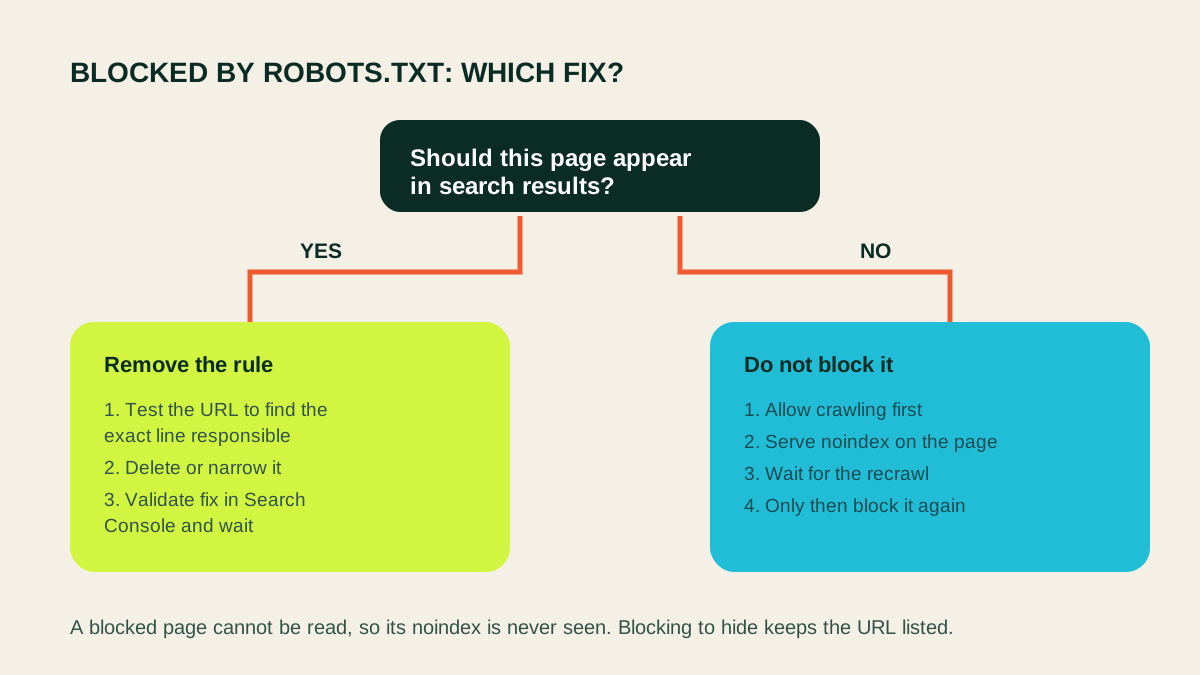
Fix: the page should be indexed
Remove or narrow the rule the tester identified.
If the rule is too broad, replace it with something specific. This blocks an entire section to hide one file:
User-agent: *
Disallow: /resources/
This blocks the file and leaves the section crawlable:
User-agent: *
Disallow: /resources/internal-notes.pdf
An Allow exception works when most of a directory should stay blocked, because the longer pattern wins:
User-agent: *
Disallow: /members/
Allow: /members/public-guide/
If the cause is a named group discarding your wildcard rules, either delete the named group or repeat inside it every rule that group still needs.
Deploy the change, then confirm the live file has updated. A CDN can serve a cached robots.txt for longer than you expect, and a file that looks right in your repository is not the file being read.
Fix: the page should not be in the index
This is the counterintuitive one. To remove a page, you must let Google crawl it.
- Remove the
Disallowrule so the page can be fetched. - Add
<meta name="robots" content="noindex">to the page, or send anX-Robots-Tag: noindexheader. - Wait for Google to recrawl and drop the page.
- Only then, if you also want to save crawl budget, add the
Disallowrule back.
The order matters. Blocking first means the noindex is never read and the page stays listed indefinitely. For something urgent, the Removals tool in Search Console hides a URL temporarily while the permanent fix takes effect.
Content that must not be public at all needs authentication. robots.txt is a public file that politely asks well-behaved crawlers to stay away; it is not access control, and the file itself advertises the paths you would rather nobody visited.
Why this happens
A staging rule shipped to production. Disallow: / is correct on staging and catastrophic on the live site. This is the most damaging version and often goes unnoticed for weeks.
A CMS or plugin setting. WordPress has a "Discourage search engines" checkbox that rewrites robots behaviour site-wide, and SEO plugins add rules of their own.
A named group overriding the wildcard group. Rules under * stop applying to a crawler the moment that crawler gets its own group.
A trailing slash. Disallow: /admin also blocks /administrator and /admin-guide. Disallow: /admin/ does not.
A pattern that matched more than intended. Disallow: /*? blocks every URL with a query string, including paginated and filtered pages you may want crawled.
The wrong host. Every host serves its own file, so rules on the apex domain do nothing for a subdomain, and a subdomain with its own restrictive file is easy to forget.
Fixing it on WordPress and Shopify
Most sites cannot simply edit a file, because the platform owns it. The two that generate the most confusion:
WordPress
WordPress serves a virtual robots.txt when no real file exists, which is why editing a file you cannot find appears to do nothing. Check three places, in this order:
- Settings, then Reading. The box marked "Discourage search engines from indexing this site" adds a site-wide block. It is often left on after a migration.
- Your SEO plugin. Yoast (Tools, then File editor), Rank Math (General Settings, then Edit robots.txt) and All in One SEO (Tools, then Robots.txt Editor) each write their own rules.
- A real file in the web root. If
robots.txtexists inpublic_html, it overrides everything above, and plugin editors may not show it.
Fix whichever one holds the rule, then fetch the live URL in a browser to confirm which version is actually being served.
Shopify
Shopify generates robots.txt and blocks /cart, /checkout, /orders and internal search by default. Those blocks are correct and should stay.
To change anything else, edit the robots.txt.liquid template: Online Store, then Themes, then Edit code, then add robots.txt.liquid under Templates. You are editing a template rather than a file, so the rules are generated per request.
A collection or product page showing as blocked is usually caught by a rule someone added to that template rather than by Shopify's defaults, so read the template before rewriting it.
Verify the fix and revalidate
Work in this order:
- Fetch the live
robots.txtin a browser and confirm the rule is actually gone. - Re-test the affected URL for Googlebot and confirm it now returns allowed.
- Run URL Inspection in Search Console and use Test live URL, which checks the current state rather than the cached report.
- Click Request indexing for a small number of important pages.
- Return to the Page indexing report and click Validate fix so Google recrawls the affected set.
Validation takes days to weeks. The report clears when Google recrawls, not when you deploy, so resist re-editing the file while validation is running.
Prevent it happening again
- Keep
robots.txtin version control and review changes like code. - Never let the staging file reach production. Generate it per environment rather than editing by hand.
- After adding any named user-agent group, re-test the paths that were covered by
*. - Add a deployment check that fetches the live file and fails if it contains
Disallow: /for*. - Re-test your key URLs after any CMS or plugin update.
- Confirm your CSS and JavaScript paths stay crawlable.
While you are in the file, it is worth checking which AI crawlers it allows, since the same precedence rules apply there and the same quiet mistakes happen. The AI Crawler Access Checker reports every major crawler at once.
Frequently asked questions
What does 'Blocked by robots.txt' mean in Search Console?
Google found the URL but your robots.txt told it not to fetch the page, so it was not crawled and was not indexed. It is a report of your own instruction, not a fault on Google's side.
What is the difference between 'Blocked by robots.txt' and 'Indexed, though blocked by robots.txt'?
The first means the page was not indexed. The second means it was indexed anyway, on the strength of links pointing at it, despite Google never reading the content. The second is usually the more urgent problem.
How do I find which rule is blocking my page?
Test the URL against your live robots.txt for Googlebot. The free ToolTrace robots.txt Tester returns the verdict along with the exact directive and line number responsible, which is what you need in order to edit the right line.
How long does it take for the error to clear?
After you remove the rule and validate the fix in Search Console, recrawling typically takes days to weeks depending on the site. The report clears when Google recrawls, not when you deploy.
Should I use robots.txt or noindex to keep a page out of Google?
Use noindex. A disallowed page cannot be fetched, so Google never reads the noindex tag on it. Blocking a page you want removed can keep it in the index rather than remove it.
Is 'Blocked by robots.txt' always a problem?
No. For admin paths, checkout, faceted URLs, and internal search results it is the correct outcome. Only act when a page you want indexed appears in the report.
Where is the robots.txt Tester in Search Console?
Google retired it. Search Console still shows the robots.txt files it fetched under Settings, but no longer lets you test a URL against them, so a third-party tester is now the practical way to check.
What does blocked by robots.txt mean in plain terms?
It means your site told Google not to fetch that page, and Google obeyed. The URL is known but the content was never read, so it could not be indexed. It is a report of your own instruction rather than a fault on Google's side.
Why is my page blocked when robots.txt looks fine?
Most often a named user-agent group overrides the wildcard group, a trailing slash changes what a pattern matches, or the file is being served from a different host or a stale cache. Test the live file rather than the copy in your repository.
Find the line
Test the URL and see which rule blocks it
Guessing at robots.txt costs more time than testing it. Check the page against your live file, read the directive and line responsible, and edit that line rather than rewriting the file.
Test a URL with the free robots.txt Tester or browse all free website tools.